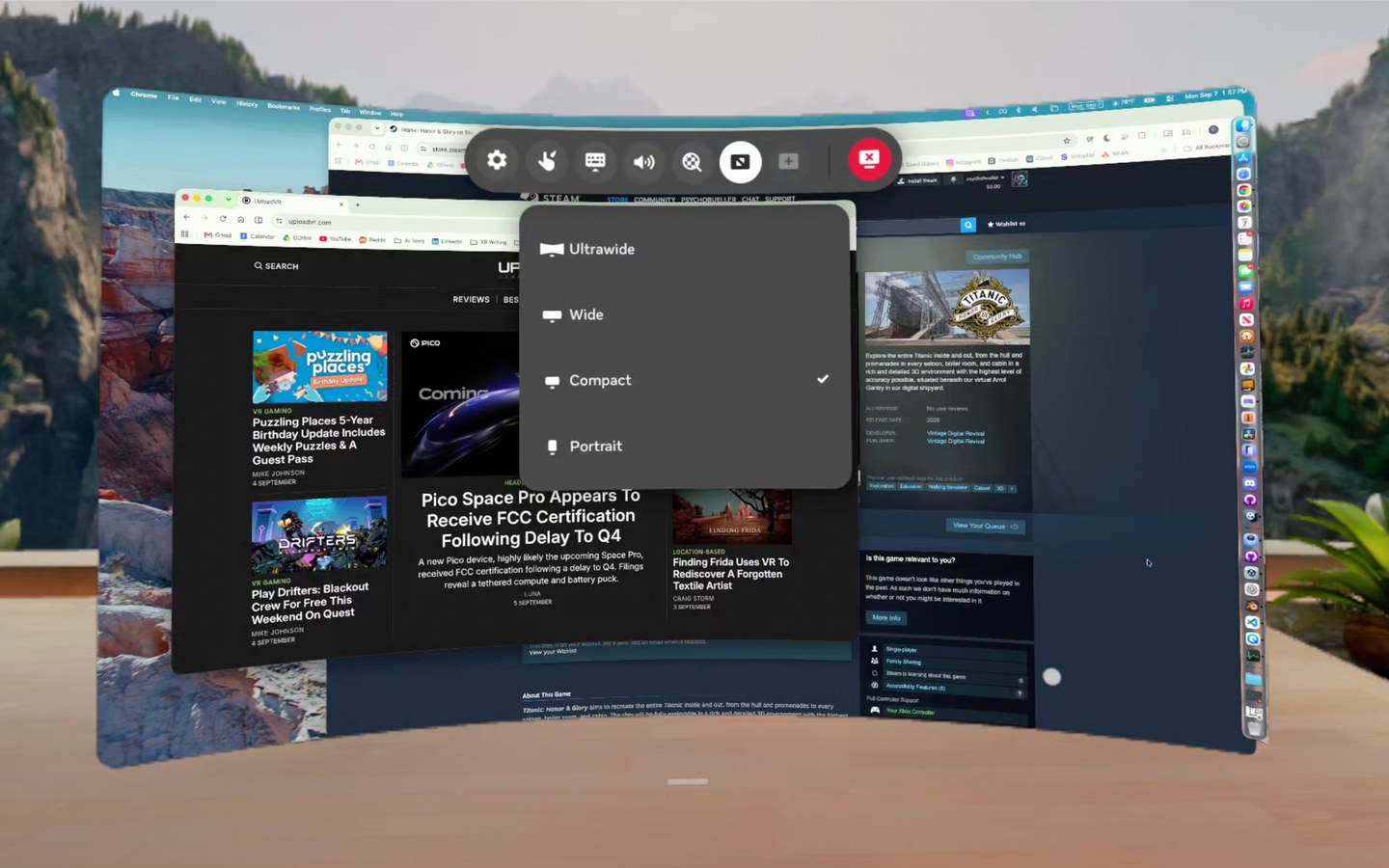
The Meta Virtual Display feature of Quest headsets has continued to receive improvements, including input forwarding, and the Mac version now offers the same core functionality previously exclusive to Windows.
While using my MacBook with Quest, I recently noticed a connection prompt I had previously only seen with Windows. Looking directly at the physical Mac now brings up a floating “Connect to view in headset” button, letting me start a Virtual Display session without first opening the app and selecting the computer manually.
UploadVR previously covered this connection method when Meta introduced it for Windows 11 in late 2024. The headset recognizes the computer you are looking at and places the connection prompt directly over it in passthrough.
That same interaction is now working with my Mac.
Once connected, Virtual Display on macOS also offers the same core display formats Meta previously brought to Windows: Portrait, Compact, Wide, and Ultrawide. There are also Larger text, Default, and More space settings for adjusting how much of the desktop fits inside the virtual display.
Some of these display options had already begun appearing on Mac earlier this year, but Meta has rolled out several Virtual Display improvements with little fanfare and without detailed release notes for every change.
I primarily tested the new features on an M2 MacBook Air, but I also tried Virtual Display on a 2017 27-inch 5K iMac with Intel Core i7 processor, running macOS Ventura. Meta's previous Remote Desktop app had failed to work properly for me on that iMac for more than a year, but the current Virtual Display app now connects successfully, including the same quick-connect prompt.
I also tested a 2017 MacBook Pro (Intel Core i5) running Ventura. Virtual Display itself worked, but I could not get the quick-connect prompt to appear on that machine. The current app clearly still supports older Intel Macs, though some features may vary by model.