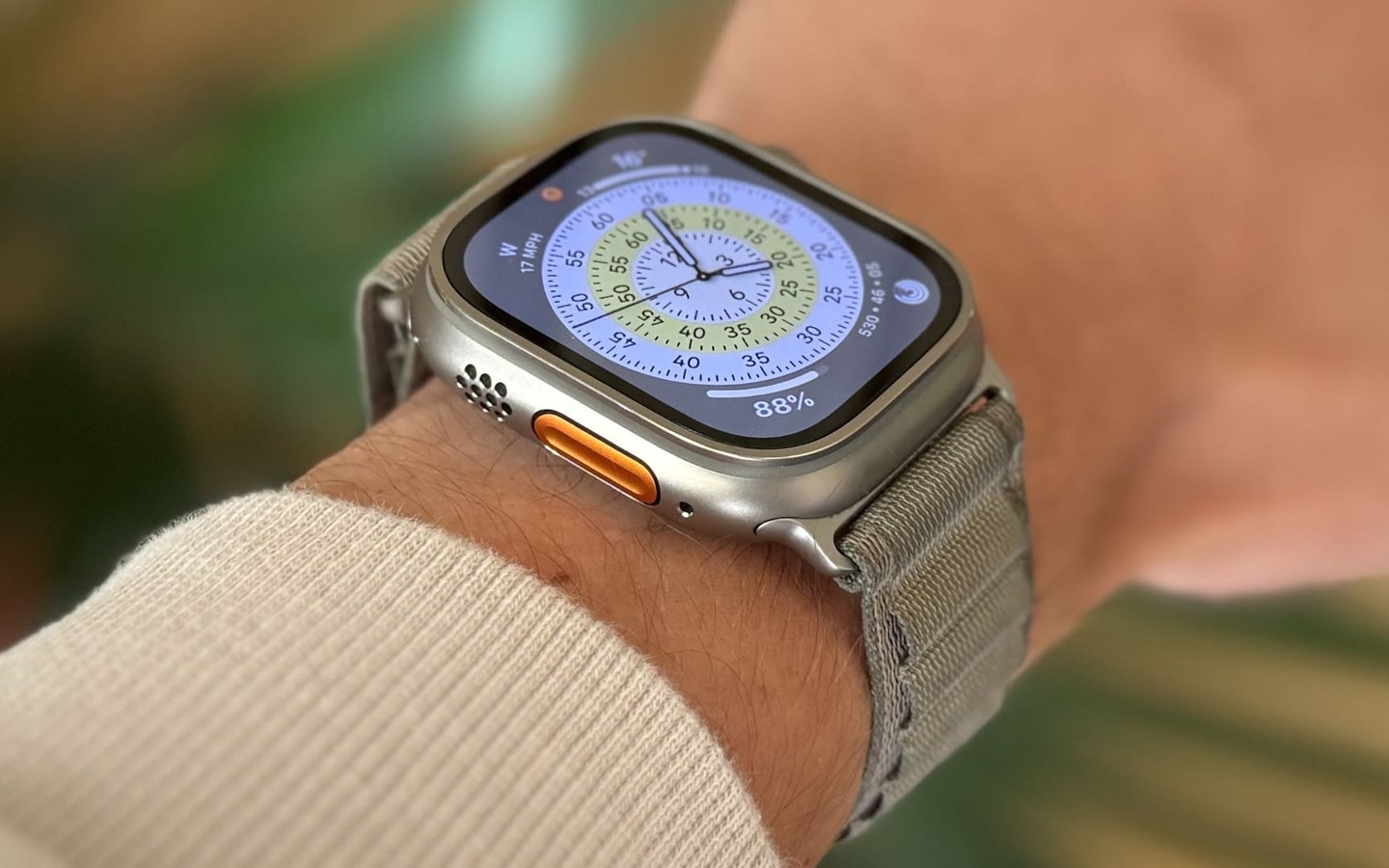
Apple’s watchOS 27 was previewed at WWDC 2026 and is now available as a developer beta, with a public beta expected in July. The final release is slated for this fall, but if you’re eager to test new Siri AI features and more, you can jump in early. For most users, watchOS 26—which shipped alongside the Apple Watch Series 11, Ultra 3, and SE 3 in September 2025—remains the daily driver. Either way, knowing how to update is essential.
What’s New in watchOS 27 and watchOS 26
watchOS 27 brings a hefty dose of Apple Intelligence to your wrist, but it also draws a compatibility line. Only these watches can run it:
- Apple Watch Series 9 or later
- Apple Watch Ultra 2 or later
- Apple Watch SE (3rd generation)
Crucially, these watches must be paired with an Apple Intelligence‑enabled iPhone: iPhone 16 models, iPhone 15 Pro, or iPhone 15 Pro Max. If your hardware doesn’t make the cut, watchOS 26 will remain your ceiling. That version introduced 12 key upgrades including refined health tracking and new watch faces, but lacks the on‑device AI processing that watchOS 27 promises.
How to Install the Update
Updating is straightforward, but a few prerequisites are non‑negotiable:
- Your iPhone 11 or newer must run the latest iOS 26 (check under Settings > General > Software Update).
- The Apple Watch must sit on its charger and be at least 50% charged.
- Keep both devices close together.
Updating via iPhone
- Open the Watch app on your iPhone and tap the My Watch tab.
- Go to General > Software Update.
- Enter your passcode if prompted, then download the update.
- Wait for the progress wheel on your Apple Watch to complete. This can take from a few minutes to an hour, so leave it on the charger.
Updating directly on the Apple Watch (watchOS 6 or later)
- Connect your watch to Wi‑Fi.
- On the watch, open Settings > General > Software Update.
- Tap Install and follow the on‑screen prompts.
Troubleshooting a Stuck Update
If the download stalls or won’t transfer, try these steps before panicking:
- Restart your Apple Watch: hold the side button until the power icon appears, then slide to power off. Turn it on by holding the side button again.
- Restart your paired iPhone: hold the Sleep/Wake button until the red slider appears, drag it, then turn the iPhone back on.
- Delete the update file: in the Watch app on iPhone, go to General > Usage > Software Update and remove the file. Then re‑download the update.
Apple occasionally drops minor updates post‑launch, adding complications, watch faces, and bug fixes. Keeping current ensures you don’t miss out on both big features and small polish. With watchOS 27 leaning heavily into portable AI, those incremental updates may become more frequent—and more meaningful.