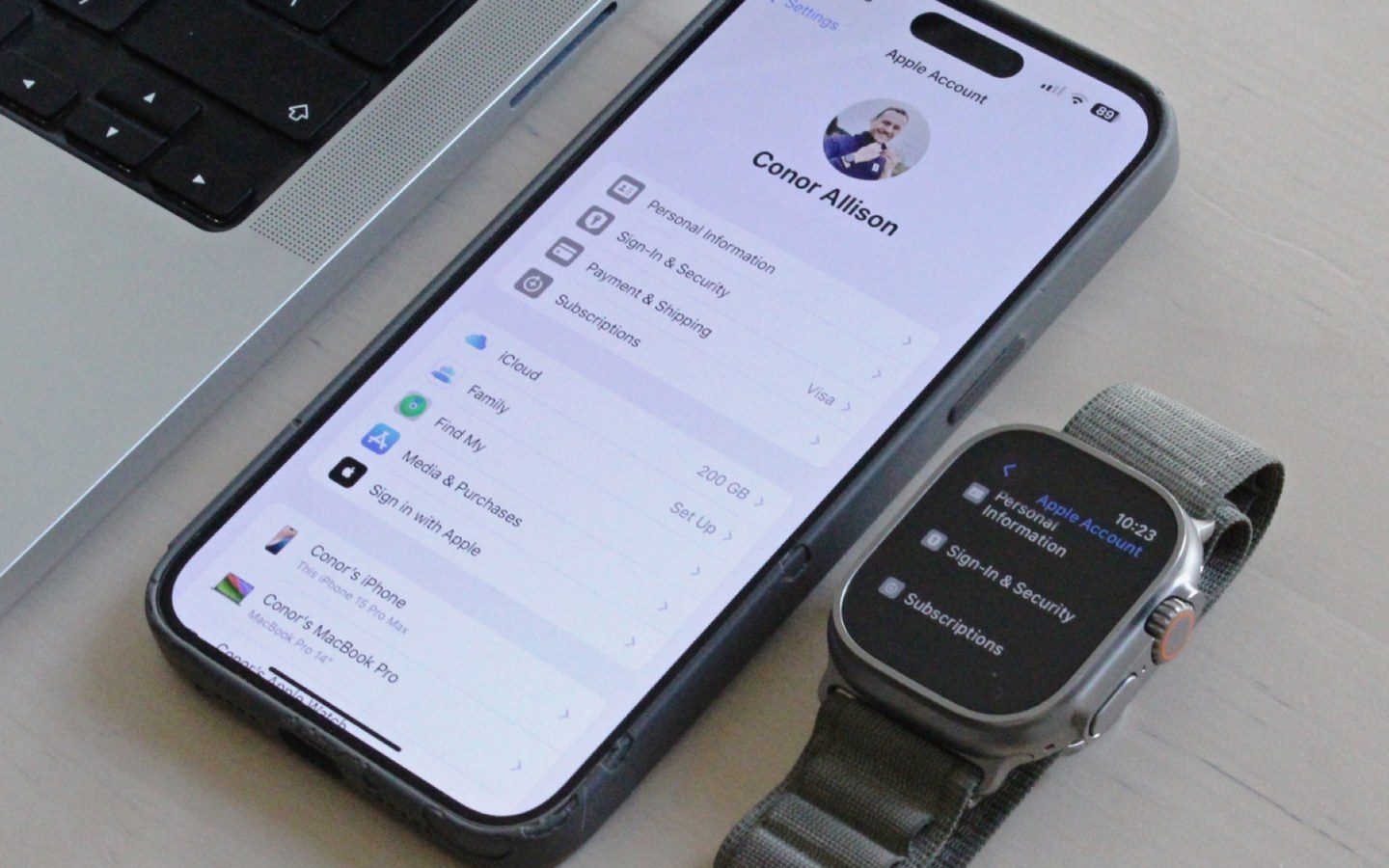
Your Apple Watch never backs itself up. That might sound alarming, but it’s really a design choice: the watch leans on your iPhone and iCloud to safeguard its settings, health data, and personalized touches. If you’re upgrading or resetting, understanding this chain is the difference between a seamless transition and a day spent reconfiguring every little detail.
The Automatic Backup You Never Knew You Had
There is no “Back Up Now” button on the watch itself. Instead, a backup is created in two quiet moments:
- When you unpair your Apple Watch from the iPhone, the phone automatically snaps a final backup of the watch’s contents.
- When your iPhone backs up to iCloud (or a computer), a snapshot of the watch’s current state is included—provided iCloud Backup is enabled.
To make sure the second method is active, open the Watch app on your iPhone, tap All Watches, then the info icon (ℹ️) next to your watch, and choose Unpair Apple Watch. The unpairing process itself triggers the backup. For ongoing protection, go to your iPhone’s Settings > [your name] > iCloud > iCloud Backup and toggle it on. A manual backup can also be started from that screen.
One nuance: if you lose both your phone and watch, there’s no backup to fall back on, so keeping iCloud Backup enabled is the safest path.
Restoring from the Backup
When you’re ready to set up a new—or newly reset—Apple Watch, the backup restoration is woven into the pairing flow. After powering on the watch, bring it near your iPhone, follow the on‑screen pairing dance (camera viewfinder, language, orientation, passcode), and you’ll eventually see a choice: Set Up as New Apple Watch or Restore from Backup. Tap the restore option, and the system will offer the most recent backup tied to that iPhone. If you don’t see it, double‑check that the old watch was unpaired properly; an interrupted unpairing can leave the backup incomplete.
The entire process draws from the iPhone’s storage, so the phone must have enough free space. Also, the restoration respects the watch’s watchOS version: you can restore a backup onto a newer watchOS, but not an older one.
What Gets Saved (and What Doesn’t)
Not every byte comes along for the ride. The backup is opinionated about what’s worth preserving:
What’s included:
- System settings: brightness, sound levels, haptic strength, Siri preferences, and notification behavior.
- Built‑in app configurations: Mail accounts, Calendar settings, and Maps favorites.
- Watch faces: your current face, all saved faces, and any custom complications.
- Synced media: playlists and albums you’ve transferred from Apple Music.
- Health & fitness data: workout history, achievements, and even the calibration data the watch uses to improve motion tracking. Health data requires an iCloud backup—a local iTunes/Finder backup won’t carry it over.
What’s left behind:
- Bluetooth pairings with headphones or other accessories.
- Apple Pay cards: for security, you’ll need to re‑add them.
- The watch’s passcode.
- Any unsynced photos or music that only lived locally on the watch.
This selective approach keeps backups lean and private. The real takeaway? If your Apple Watch is a daily driver for health tracking or portable AI assist, an iCloud backup is the only way to ensure your long-term data survives a device swap.