Answered: How to set Apple Watch to vibrate-only for notifications and alerts
Setting the Apple Watch to vibrate is essential if you don't want notifications to sound. Learn how to do so with this quick guide.
Condensed by AI-Portable from Editorial queue.
If you prefer your Apple Watch notifications without sound, you can set them up to vibrate only.
There are three methods to do so, and they’re all quick and easy. In this guide, we’ll explain all of them and how you can adjust the strength of the smartwatch’s haptic feedback. For more information, refer to our guide on controlling incoming notifications on your Apple Watch , which explains how to mute the smartwatch and clear prompts.
Your Apple Watch will automatically sound unless it’s in Silent Mode, meaning you’ll need to know how to turn this on if you want the device to vibrate.
Here are the three ways on how you can turn Apple Watch to vibrate only:
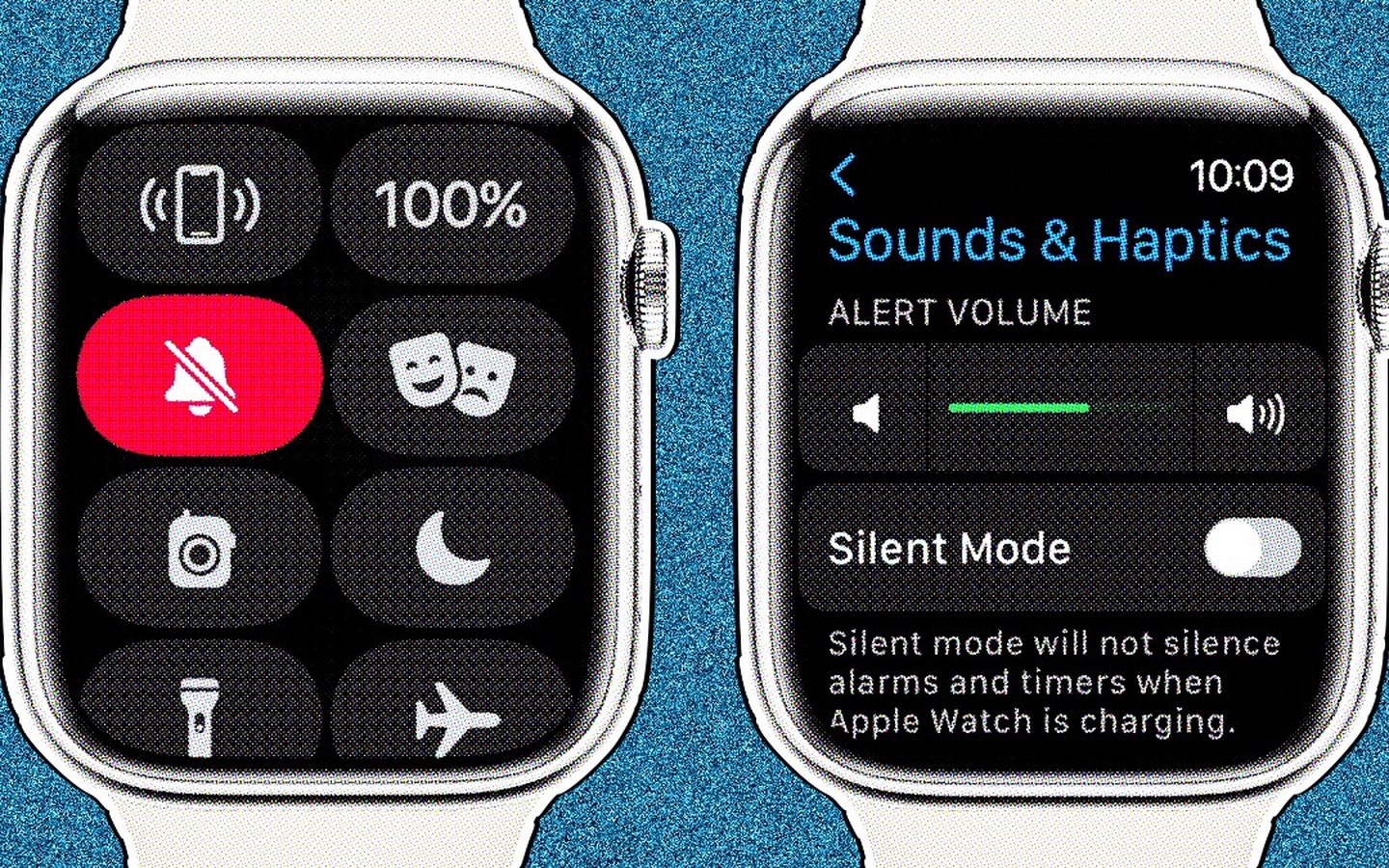
From the Control Center: Swipe up from the bottom of the watch face to open the Control Center, and then tap the bell icon to turn on Silent Mode.
From the Settings app: Open the Settings app on the Apple Watch, proceed to Sounds & Haptics, and toggle Silent Mode to on.
From the Watch app on iPhone: Open the app and go to My Watch, before proceeding to tap Sounds & Haptics and toggle the Silent Mode on.
Handily, Apple Watch’s Silent Mode will make the smartwatch vibrate when you receive notifications. However, alarms and timers will still sound if you set them.